Marco.org

Jun 17 2008
OS X tip: (mostly for Casey’s benefit)

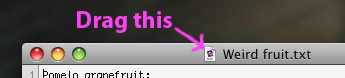
In most OS X applications, you can drag the document icon directly out of the title bar and drop it anywhere — the Desktop, a folder, etc. This moves the file instantly to the new location, while you have it open, without screwing up.

Also, some Finder navigation shortcuts:

⌘-Backspace: Delete file
⌘O: open file
⌘-up-arrow: Up in the folder hierarchy
⌘-down-arrow: Down in the folder hierarchy (if folder), or open file (if file)
Enter: rename file
Hold ⌘ while dragging a file to force it to align to the grid.
Hold Option while dragging a file to force a copy instead of a move.

OS X tip: (mostly for Casey’s benefit)

In most OS X applications, you can drag the document icon directly out of the title bar and drop it anywhere — the Desktop, a folder, etc. This moves the file instantly to the new location, while you have it open, without screwing up.

Also, some Finder navigation shortcuts:

  • ⌘-Backspace: Delete file
  • ⌘O: open file
  • ⌘-up-arrow: Up in the folder hierarchy
  • ⌘-down-arrow: Down in the folder hierarchy (if folder), or open file (if file)
  • Enter: rename file
  • Hold ⌘ while dragging a file to force it to align to the grid.
  • Hold Option while dragging a file to force a copy instead of a move.
Creative Commons License All original content is licensed under the Creative Commons Attribution 3.0 U.S. License except that which is quoted from elsewhere or attributed to others. In short, you may reproduce, reblog, and modify my content, but you must provide proper attribution.